 Servey
Servey for Mac
If you arrived here from the iPhone or iPad app, this is the piece it was asking for. That app is the remote. This is what it talks to - the app that runs on the Mac you want to reach, shares its screen, and hands you a real shell on it.
A 35 MB disk image, downloaded from this site rather than the Mac App Store - the App Store cannot carry an app that captures your screen and runs your shell. It is signed and notarised by Apple, so macOS will open it normally: double-click, drag it to Applications, done. No right-click-to-open, no Gatekeeper warning to talk yourself past.
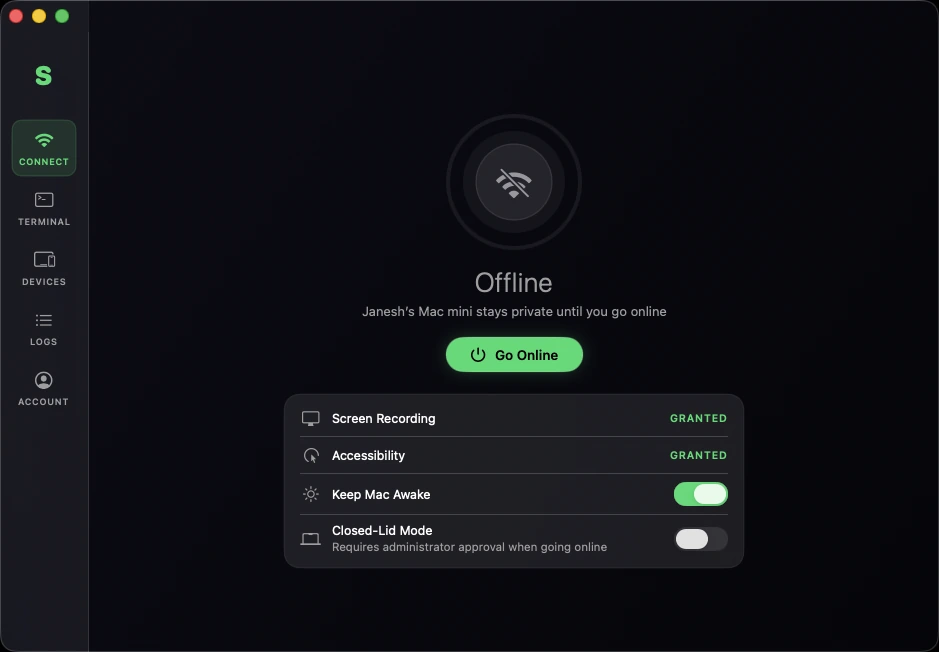
The Mac app. Grant two permissions, press Go Online, and your Mac is reachable by your own devices - private until you do.
Why there are two apps
A Mac cannot share its screen or run your shell because a phone asked it to nicely. Something has to be running on the Mac itself, with your permission, to capture the display, inject real mouse and keyboard events, and open a terminal session. That is this app. It is why Servey is a pair rather than a single download, and it is why the App Store only carries half of it.
What it does on your Mac
Shares the screen
Hardware-encoded HEVC on your own network, so text stays sharp enough to read when you pinch to zoom.
Runs your sessions
Named tmux sessions that keep going after you disconnect, and can be reattached from any terminal on the Mac.
Holds the keys
Your master password lives here and never leaves. Every new device waits for you to approve it on this machine.
What you will need
- macOS 14 (Sonoma) or later
- Apple silicon or Intel
- An iPhone or iPad on iOS or iPadOS 17 or later
- A Google account, used on both devices
macOS 14 came out in September 2023, so most Macs still in use qualify. If you are not sure, the version is in the Apple menu under About This Mac.
What happens when you install it
- 1Open the .dmg and drag Servey to Applications, the way you would any Mac app.
- 2Sign in with the same Google account you used on your iPhone or iPad. That pairing is what connects the two.
- 3Set a master password. Every device has to produce it before it can connect, and there is deliberately no way to skip it or reset it remotely.
- 4Grant Screen Recording and Accessibility. macOS asks because mirroring a screen and moving a cursor are exactly what those two permissions govern.
- 5Press Go Online. Your Mac appears on your iPhone or iPad, you approve the device once, and you are in.
Before you start
If you want to know what you are getting into, how it works walks the whole setup, and our headless Mac mini guide is worth reading first if the Mac you are reaching lives on a shelf without a monitor. What we collect, and what we never see, is in the privacy policy.