 Servey
How it works
Your Mac, on the screen in your hand.
Servey is two apps that work as a pair. One runs on the Mac you want to reach. The other runs on your iPhone or iPad and acts as the remote. Once they are signed in to the same account, the Mac shows up on the smaller device and you can see its screen and use its terminal as though you were sitting at it.
Signed and notarised by Apple, so it opens like any other Mac app. The iPhone and iPad half is on its way to the App Store.
See the screen
The Mac's display, mirrored live. Pinch to zoom in on something small; text stays sharp enough to read rather than dissolving into blocks.
Use the terminal
A real shell on the Mac, not a simulation. Named sessions keep running after you disconnect, so a long job survives you closing the app.
Stay in control
Your screen is shared with your own devices and nobody else's. Every new device waits for you to approve it on the Mac first.
Setting it up
Five steps, once, and most of them are macOS asking your permission rather than anything Servey makes you configure.
- 1
Install the Mac app on the Mac you want to reach
Servey has two halves and this is the one that does the work. A Mac cannot share its screen or run your shell because a phone asked it to - something has to be running on the Mac itself, with your permission, to capture the display, move the cursor and open a terminal.
- 2
Sign in with the same Google account on both
That shared sign-in is the entire pairing step. There is no code to type, no IP address to find, and nothing to configure on your router.
- 3
Set a master password on the Mac
It is set on the Mac and it stays there. Every device has to produce it before it can connect, and there is deliberately no way to reset it remotely - not by us, not by anyone who reaches your account.
- 4
Grant Screen Recording and Accessibility
macOS asks for these because mirroring a screen and moving a cursor are exactly what those two permissions govern. Servey cannot work without them, and you can withdraw them in System Settings at any time.
- 5
Press Go Online, then approve the device once
Your Mac appears on the iPhone or iPad. The first time a new device asks to connect, you approve it on the Mac itself - so a device you do not recognise never gets in, even with the password.
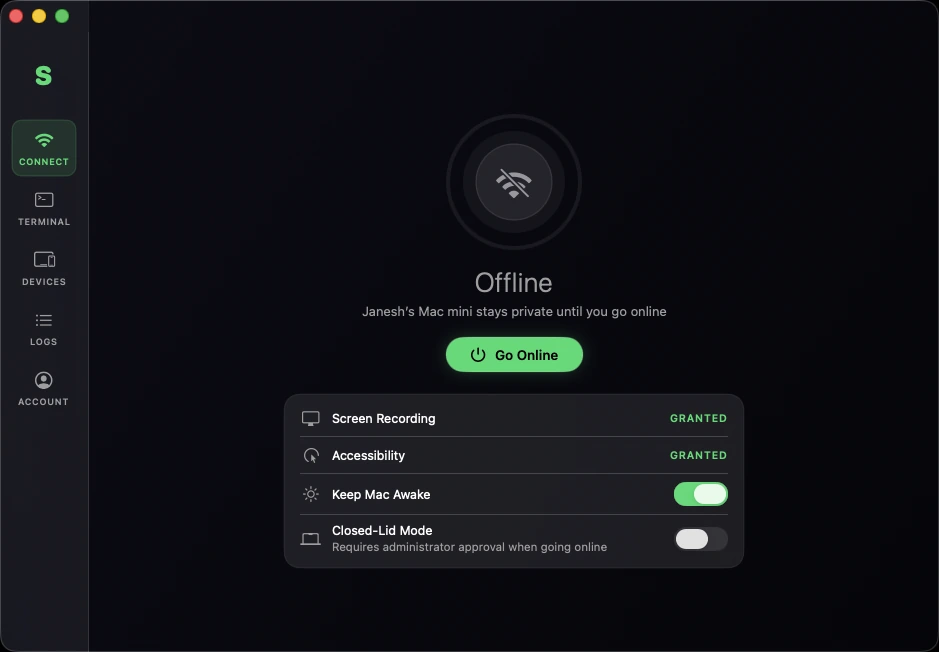
The Mac app. Grant two permissions, press Go Online, and the Mac becomes reachable by your own devices - private until you do.
What a session looks like
Open the app on your iPhone or iPad, pick the Mac, and you are connected. Screen mirroring and the terminal are two tabs of the same session, so you can read an error in a window and then go and fix it in a shell without reconnecting.
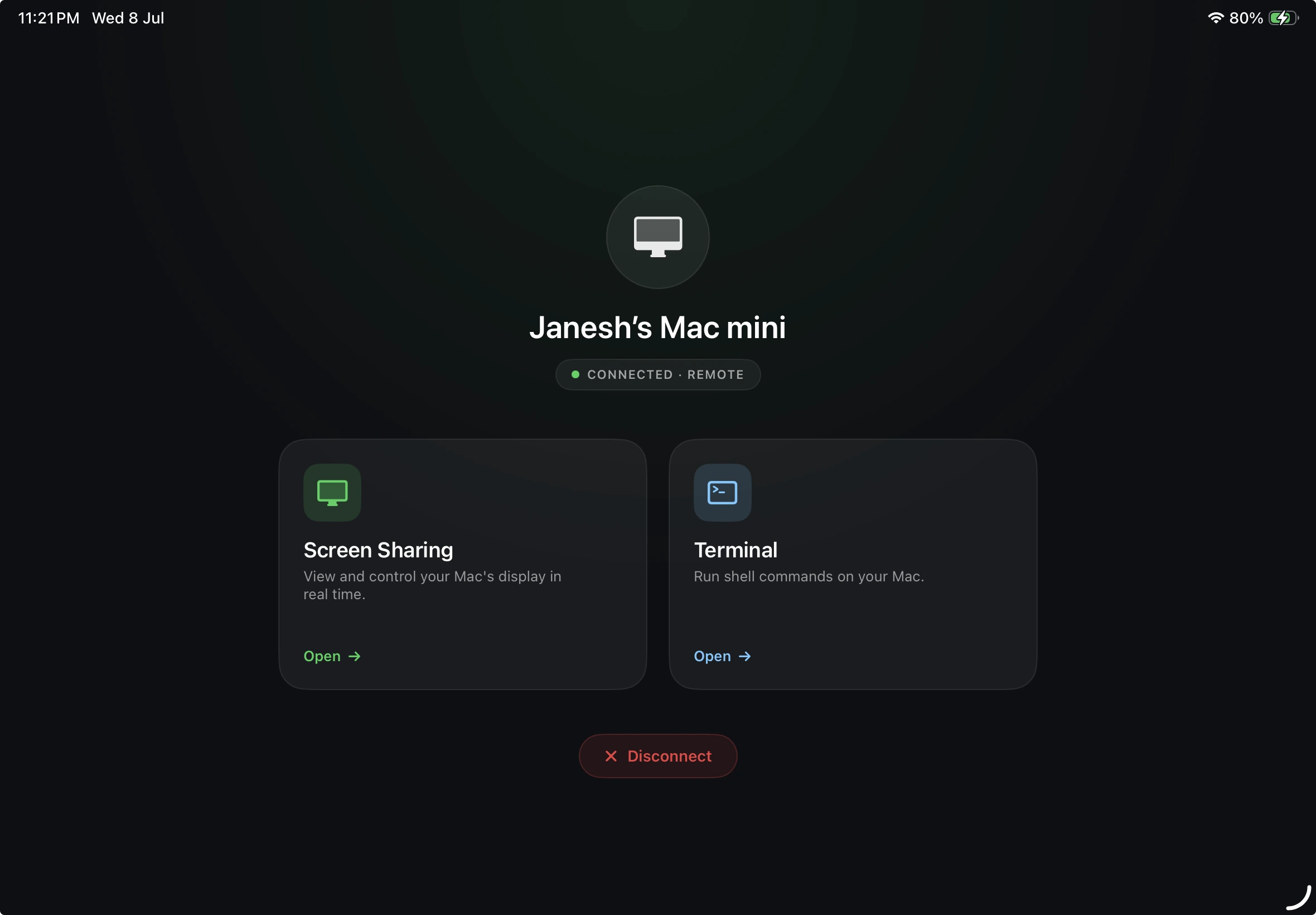
Connected from an iPad - screen sharing and terminal in one session.
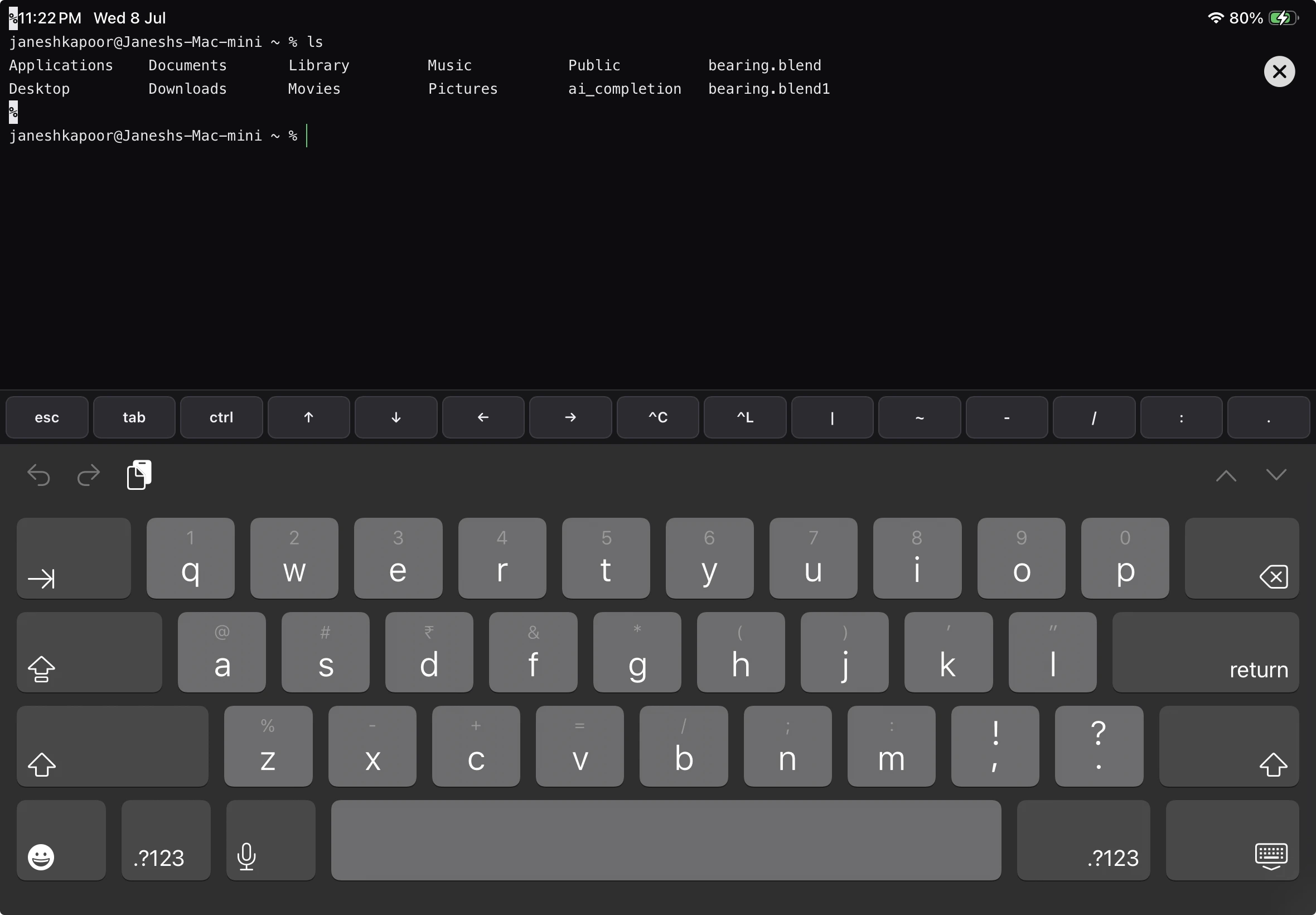
A real shell on the Mac, with an on-screen row for the keys a software keyboard does not have.
How the connection is made
On the same Wi-Fi, the two devices talk directly to each other and the video never leaves your network. From anywhere else, Servey tries a direct peer-to-peer connection first and falls back to our own relay when a network refuses to allow one. The stream is encrypted either way, and the relay carries it without being able to read it.
Your Mac is not reachable until you press Go Online, and it stops being reachable when you press it again. There is no always-on service waiting in the background for someone to find.
What you need
- A Mac running macOS 14 (Sonoma) or later - Apple silicon or Intel
- An iPhone or iPad running iOS or iPadOS 17 or later
- A Google account, used to sign in on both
- Both devices awake, with the Mac online
What we can and cannot see
Your screen and your keystrokes travel between your own two devices, encrypted. Your master password never leaves the Mac in a form anyone could reuse. The record of what connected and when is kept on your Mac, where you can read it and clear it. The full detail of what we collect, and what we never see, is in our privacy policy.